

Have you ever tried tapping an app, scrolling through a message, or answering a call, only to find that your iPhone screen isn’t responding? An unresponsive iPhone touchscreen can be frustrating, especially when you depend on your phone for everyday communication, work, navigation, and entertainment.
The good news is that a touchscreen problem doesn’t always mean your iPhone needs a new screen. Sometimes, the issue is caused by a temporary software glitch, a dirty display, a faulty screen protector, or an incompatible charging accessory. In other situations, physical damage, liquid exposure, or an internal hardware problem may be responsible.
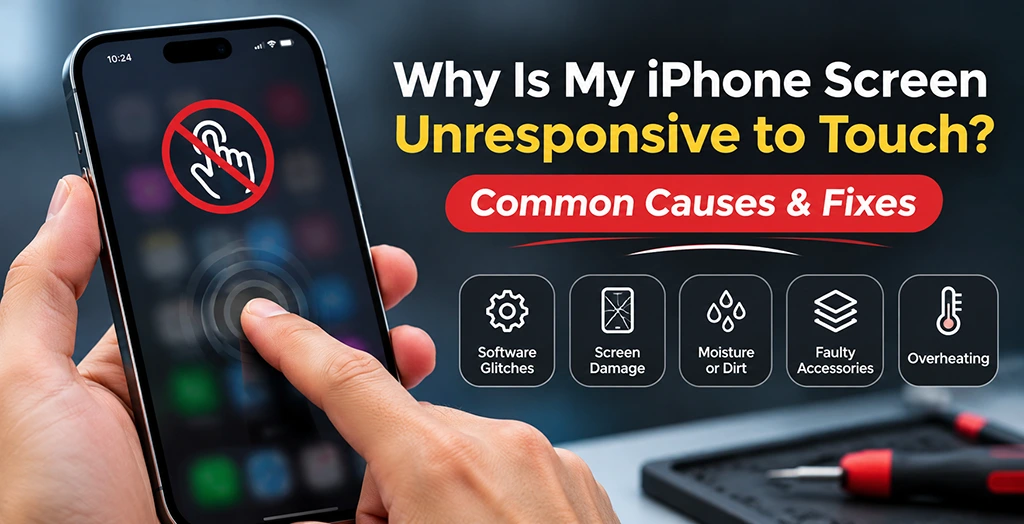
So, why is your iPhone screen unresponsive to touch, and what can you do about it?
In this guide, we’ll explain the most common causes of iPhone touchscreen problems, share practical troubleshooting steps you can try at home, and help you recognize when it’s time to seek professional iPhone screen repair.
Why Is My iPhone Screen Not Responding to Touch?
Your iPhone uses a sensitive touchscreen system to detect finger movements and translate them into actions. When something interferes with this system, your screen may stop responding completely or become difficult to use.
Here are some of the most common reasons this happens.
1. Temporary Software Glitches
One of the simplest explanations for an unresponsive iPhone screen is a temporary software issue.
Sometimes, an app may freeze, iOS may experience a temporary error, or background processes may interfere with normal device operation. You might notice that the screen stops responding while using a particular app, becomes slow to register touches, or freezes unexpectedly.
Possible signs:
- The screen freezes while opening or using an app.
- Touch responses become delayed.
- Some apps stop responding while others work normally.
- The iPhone becomes temporarily unresponsive after an update.
What you can do:
Try restarting your iPhone. A restart can clear temporary software issues and restore normal touchscreen functionality.
If the screen is completely frozen and you cannot use the usual restart option, try a force restart. The button combination depends on your iPhone model.
2. A Cracked or Physically Damaged Screen
Physical damage is another common reason an iPhone touchscreen stops working properly.
Even if the display still turns on, a fall or strong impact can damage the touchscreen’s internal components. Sometimes, the outer glass may look fine while the underlying display or touch-sensing system has been affected.
Possible signs:
- Certain areas of the screen do not respond.
- Touches register in the wrong location.
- The screen has visible cracks or shattered glass.
- Lines, black spots, or flickering appear on the display.
- The touchscreen works intermittently after a drop.
What you can do:
Check the display for visible damage. If the screen is cracked, unresponsive, or showing unusual display behavior, avoid pressing it repeatedly or attempting to repair it yourself.
A professional technician can inspect the display assembly and determine whether screen replacement or another repair is necessary.
At Talk N’ Fix, screen repair is one of the services available for iPhones and other devices.
3. Dirt, Moisture, or Oil on the Screen
Your iPhone touchscreen needs a clean surface to register touches properly. Dust, fingerprints, grease, and moisture can sometimes interfere with touch input.
This is particularly common if you use your phone while eating, exercising, working outdoors, or handling it with wet hands.
Possible signs:
- Touches register inconsistently.
- Certain areas seem less responsive.
- The screen behaves strangely when wet.
- Touchscreen problems appear after exposure to moisture.
What you can do:
- Turn off your iPhone if practical.
- Disconnect any charging cables or accessories.
- Use a clean, soft, lint-free cloth to gently wipe the screen.
- Make sure your hands are clean and dry before using the device again.
Avoid spraying cleaning products directly onto your iPhone. If the device has been exposed to liquid internally, do not attempt to charge it until it has been properly assessed.
4. A Faulty Screen Protector or Phone Case
Sometimes, the problem isn’t with your iPhone itself. A poorly fitted screen protector or an incompatible case can interfere with normal touchscreen operation.
Thick, damaged, peeling, or improperly installed screen protectors may affect touch responsiveness. A case that presses against the edges of the display can also cause problems.
Possible signs:
- Touch sensitivity changes after installing a new screen protector.
- The screen responds better around certain areas.
- Touch problems started after changing your phone case.
- The protector has bubbles, cracks, or lifted edges.
What you can do:
Remove your phone case and, if necessary, carefully remove the screen protector. Clean the display and test the touchscreen again.
If the problem disappears, replace the faulty accessory with a properly fitted, compatible product.
5. iOS Updates or Compatibility Issues
Keeping your iPhone updated is important for security, performance, and compatibility. However, software-related issues can sometimes appear after an iOS update.
A failed update, temporary system error, or app compatibility problem may affect how your device responds to touch.
Possible signs:
- Touchscreen problems started after an iOS update.
- Your iPhone freezes more frequently than before.
- Certain apps become unresponsive.
- The device experiences unusual performance issues.
What you can do:
If you can still access your iPhone:
- Check whether another iOS update is available.
- Install available updates from Settings > General > Software Update.
- Update apps through the App Store.
- Restart your device after installing updates.
Before performing major software troubleshooting, back up your important data whenever possible.
If the touchscreen is completely unresponsive, avoid attempting a factory reset without first considering your backup and data recovery options.
6. Overheating or Extreme Temperatures
Your iPhone is designed to operate within a specific temperature range. Exposure to excessive heat or very cold conditions can affect device performance.
When an iPhone becomes too hot, iOS may temporarily limit certain functions to protect the device. You may experience slower performance, display changes, or temporary interruptions.
Possible signs:
- Touch responses become delayed when the phone is hot.
- The device feels unusually warm.
- Performance improves after the phone cools down.
- A temperature warning appears on the display.
What you can do:
Move your iPhone away from direct sunlight or other heat sources. Disconnect unnecessary accessories and allow the device to return to a normal temperature naturally.
Do not place it in a refrigerator or freezer to cool it down quickly.
7. Internal Hardware or Battery Problems
Not every touchscreen issue is caused by the display itself.
Internal components, damaged connectors, battery problems, or other hardware faults can sometimes affect touchscreen functionality.
For example, a damaged battery may swell and put pressure on surrounding components, potentially lifting the display.
Possible signs:
- The screen lifts away from the phone’s frame.
- The touchscreen stops working without an obvious software reason.
- The device has a history of drops or liquid exposure.
- The display behaves inconsistently despite basic troubleshooting.
What you can do:
If you notice screen separation, unusual swelling, or other signs of battery damage, stop using and charging the device. Do not press the screen back into place or attempt to open the phone yourself.
Have the device inspected by a qualified repair technician as soon as possible.
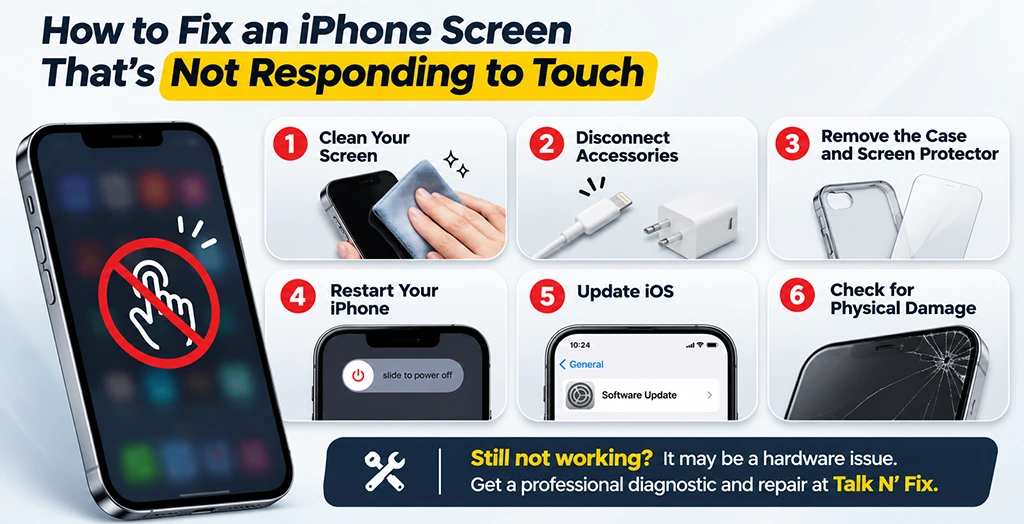
How to Fix an iPhone Screen That Is Not Responding to Touch
Before assuming that your iPhone needs professional repair, try these troubleshooting steps.
Step 1: Clean Your iPhone Screen
Start with the simplest solution.
Turn off your iPhone if possible and gently clean the display using a soft, lint-free cloth. Remove any dirt, oil, fingerprints, or moisture.
Make sure your fingers are clean and dry before testing the touchscreen.
Step 2: Disconnect Charging Accessories
Faulty charging cables, adapters, or other connected accessories can sometimes interfere with touchscreen behavior.
Disconnect your iPhone from its charger and remove connected accessories. Test the screen again.
If the touchscreen works normally after disconnecting a particular charger or accessory, stop using that accessory and check it for damage.
Step 3: Remove the Case and Screen Protector
A damaged or poorly fitted screen protector may affect touch sensitivity.
Remove the case and test your iPhone. If necessary, carefully remove the screen protector as well.
If touch responsiveness improves, replace the accessory with a compatible alternative.
Step 4: Restart Your iPhone
Restarting your device is one of the easiest ways to resolve temporary software glitches.
If you can access the screen, use the normal restart option for your iPhone model.
If the touchscreen is completely frozen, a force restart may help.
How to force restart your iPhone:
- iPhone 8 and newer models, including iPhone SE (2nd and 3rd generation): Quickly press and release the Volume Up button, quickly press and release the Volume Down button, then press and hold the Side button until the Apple logo appears.
- iPhone 7 and iPhone 7 Plus: Press and hold the Volume Down and Side buttons together until the Apple logo appears.
- iPhone 6s, iPhone 6s Plus, and iPhone SE (1st generation): Press and hold the Home and Side (or Top) buttons together until the Apple logo appears.
A force restart does not normally erase your personal data.
Step 5: Update iOS
If your touchscreen is working intermittently, check whether your iPhone has an available software update.
Go to:
Settings > General > Software Update
If an update is available, follow the on-screen instructions.
Make sure your iPhone has sufficient battery power and a stable internet connection before starting the update. Back up your important data first when possible.
Step 6: Check for Signs of Physical or Liquid Damage
If none of the previous steps works, inspect your iPhone for visible damage.
Look for:
- Cracks or chips in the display.
- Black spots or unusual lines.
- Areas that no longer register touches.
- Signs of moisture exposure.
- A display that is separating from the frame.
Do not open the device or attempt to reconnect internal components yourself. Modern iPhones contain delicate components that can be damaged during improper repairs.
If you suspect internal damage, professional diagnosis is the safest next step.
When Should You Get Professional iPhone Screen Repair?
Basic troubleshooting can resolve many temporary touchscreen problems. However, persistent issues may indicate a hardware fault that requires professional attention.
Consider getting your iPhone inspected if:
- The touchscreen remains unresponsive after restarting.
- Only certain sections of the display respond to touch.
- Your iPhone has a cracked or shattered screen.
- The screen displays lines, black spots, or flickering.
- Touchscreen problems started after a drop or liquid exposure.
- The display is lifting away from the frame.
- The problem keeps returning despite software troubleshooting.
A professional diagnostic can help identify whether the problem involves the display assembly, internal connections, battery, or another component.
Replacing the screen without identifying the actual cause may not resolve the issue. That’s why proper diagnosis matters.
How Can You Prevent Future iPhone Touchscreen Problems?
Although not every touchscreen issue can be prevented, a few simple habits can reduce the risk of damage.
1. Use a Quality Screen Protector
A properly fitted screen protector can help protect the display from everyday scratches and minor impacts.
2. Choose a Protective Phone Case
A durable case can help reduce the impact of accidental drops and protect your iPhone’s edges.
3. Keep Your iPhone Clean and Dry
Clean your display regularly and avoid handling your phone with wet or dirty hands.
4. Avoid Extreme Temperatures
Do not leave your iPhone in direct sunlight, hot vehicles, or extremely cold environments for extended periods.
5. Keep iOS Updated
Install official software updates to benefit from security improvements, bug fixes, and compatibility updates.
6. Use Reliable Charging Accessories
Choose compatible, good-quality charging cables and adapters. Stop using accessories that are damaged or cause unusual device behavior.
Get Professional iPhone Screen Repair at Talk N’ Fix
An unresponsive iPhone screen can disrupt your entire day. While simple issues such as dirt, faulty accessories, or temporary software glitches may be resolved at home, persistent touchscreen problems often require professional diagnosis.
That’s where Talk N’ Fix can help.
At Talk N’ Fix, we provide professional device repair services, including iPhone screen repair, battery replacement, charging port repair, camera repair, and more.
Our experienced technicians handle a wide range of iPhone models, including the iPhone 11, 12, 13, 14, 15, 16, 17, and iPhone SE.
Here’s what you can expect from Talk N’ Fix:
- Expert Technicians: Certified and experienced professionals who handle a wide range of device repair issues.
- Premium Quality Parts: We use high-quality parts for our repair services.
- Fast Turnaround: Most repairs are completed the same day, with many taking approximately 30–45 minutes, depending on the repair.
- Free Diagnostics: We offer free diagnostics with a no-fix, no-charge approach.
- Warranty Coverage: Warranty coverage is available on parts and labor.
Whether your iPhone screen is cracked, partially responsive, or completely frozen, our team can help assess the problem and recommend an appropriate repair.
Visit your nearest Talk N’ Fix location or book your repair online to get started.
Talk N’ Fix – Fast. Reliable. Professional.
Frequently Asked Questions (FAQs)
1. Why is my iPhone screen not responding to touch but still displaying an image?
This can happen when the touchscreen’s sensing components are damaged or malfunctioning, even though the display itself is still working. Software glitches, damaged screen connections, or physical impact may also be responsible.
Try restarting your iPhone and disconnecting any accessories. If the problem continues, have the device professionally inspected.
2. Can a software update fix an unresponsive iPhone screen?
Yes, if the problem is caused by a software bug or temporary system issue. Updating iOS may resolve certain software-related touchscreen problems. However, an update will not repair physical damage to the display or internal hardware.
3. Why is only part of my iPhone screen not working?
If certain areas of your screen do not respond while the rest works normally, the touchscreen assembly may have localized damage. This can happen after accidental drops, pressure, or internal component failure.
A professional diagnostic can help determine the exact cause.
4. Will restarting my iPhone fix touchscreen problems?
Restarting can resolve temporary software glitches and frozen applications. However, if your touchscreen problem is caused by a cracked display, liquid damage, or a hardware fault, restarting alone will not fix it.
5. Can a cracked iPhone screen still work?
Yes. An iPhone may continue responding to touch even when the outer glass is cracked. However, internal touchscreen components may also be damaged, causing delayed responses, dead zones, or complete touch failure.
It’s best to have a damaged display inspected rather than continuing to use it without checking for further damage.
6. How long does iPhone screen repair take?
Repair time depends on the iPhone model, the type of damage, and parts availability. At Talk N’ Fix, most repairs are completed the same day, with many taking approximately 30–45 minutes.
Your technician can provide a more accurate estimate after inspecting your device.
7. Is it worth repairing an iPhone with an unresponsive touchscreen?
In many cases, yes. If the rest of the device is in good condition, repairing the screen or affected component may be more economical than replacing the entire phone.
A professional diagnosis can help you understand the repair options and make an informed decision.
8. Should I replace my iPhone screen if the touchscreen stops working?
Not necessarily. The problem could be related to software, internal connections, liquid damage, or another hardware component. A proper diagnostic should be performed before deciding whether screen replacement is necessary.
Still having trouble with your iPhone touchscreen? Contact Talk N’ Fix today and let our experienced technicians help you get your device working again.