

Whether you use your tablet to attend online classes, complete work assignments, watch videos, or enjoy your favorite games, having enough battery power throughout the day is essential. Few things are more frustrating than seeing your tablet’s battery drop to 10% when you still have hours of work, studying, or entertainment ahead.
While every tablet has a different battery capacity and power consumption, the way you use and maintain your device can make a significant difference in how long it lasts between charges.
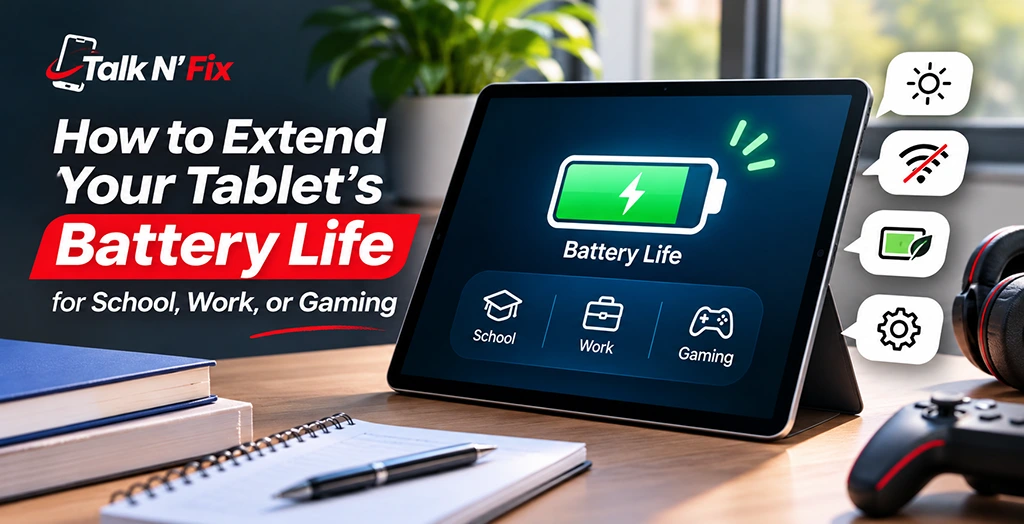
The good news is that you don’t need complicated tools or expensive accessories to improve your tablet’s battery life. A few simple adjustments to your settings, charging habits, and everyday usage can help you get more out of your device.
In this guide, Talk N’ Fix shares practical tips to help you extend your tablet’s battery life, whether you’re using an iPad, Samsung Galaxy Tab, Microsoft Surface, Google Pixel Tablet, or another popular tablet.
1. Reduce Your Screen Brightness
Your tablet’s display is one of the biggest consumers of battery power. Keeping the screen brightness at maximum throughout the day can drain your battery much faster than necessary.
For everyday activities, try lowering your brightness to a comfortable level. You should still be able to read text, view documents, and watch videos without straining your eyes.
Here are a few ways to reduce screen-related battery consumption:
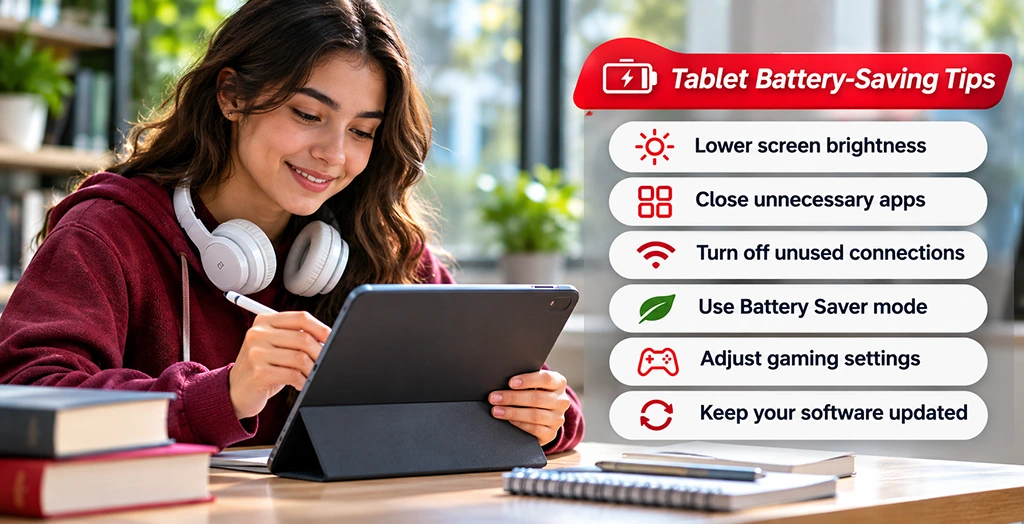
- Lower the brightness manually when you’re indoors.
- Enable automatic or adaptive brightness if your tablet supports it.
- Use dark mode if you prefer it and your tablet has an OLED display, where dark pixels can use less power.
- Reduce the screen timeout so your display turns off when you’re not using it.
Helpful tip: If you’re attending online classes or working on documents, try keeping your brightness at a moderate level rather than maximum. This small adjustment can help conserve power throughout the day.
2. Close Unnecessary Background Apps
Some applications continue performing activities even after you leave them. They may refresh content, synchronize information, check for updates, or access location services in the background.
Although these features are useful, unnecessary background activity can contribute to battery drain.
To manage it:
- Review which apps consume the most battery in your tablet’s battery settings.
- Restrict background app refresh for applications that don’t need constant updates.
- Disable unnecessary background synchronization.
- Remove applications you no longer use.
- Limit location access for apps that don’t need it.
You don’t necessarily need to force-close every application after using it. Modern tablet operating systems are designed to manage background processes automatically. Focus instead on identifying applications that consistently use excessive power.
3. Turn Off Wi-Fi, Bluetooth, and Location Services When Not Needed
Wireless connectivity features can consume additional battery power, particularly when your tablet is constantly searching for networks or connected devices.
If you’re working offline, reading downloaded textbooks, or watching previously downloaded videos, consider switching off connections you don’t need.
For better battery management:
- Turn off Bluetooth when you’re not using wireless headphones, keyboards, or other accessories.
- Disable location services for applications that don’t require your location.
- Use Airplane Mode when you don’t need internet or cellular connectivity.
- Disconnect from unstable networks when appropriate.
Remember that Wi-Fi is generally more power-efficient than cellular data for many online activities. If you’re using your tablet for online classes or remote work, there’s no need to disable Wi-Fi simply to save battery.
The goal is to avoid unnecessary connectivity rather than sacrificing features you actually need.
4. Enable Battery Saver or Low Power Mode
Most modern tablets include built-in power-saving features that help extend battery life when your charge is running low.
Depending on your device, these features may be called Low Power Mode, Battery Saver, or Power Saving Mode.
When enabled, they can reduce certain background activities, limit synchronization, adjust performance, and restrict other power-consuming functions.
For students: Enable power-saving mode before heading to class if you know you won’t have access to a charger.
For professionals: Use it during meetings, travel, or long work sessions when keeping your tablet running is more important than maximizing performance.
For everyday users: Consider enabling automatic battery-saving features when your battery reaches a certain percentage, if your device supports this option.
Keep in mind that some power-saving modes may affect performance, notifications, or background updates.
5. Manage Your Gaming Settings
Gaming is one of the most demanding activities you can perform on a tablet. High-resolution graphics, intensive processing, animations, and demanding frame rates can consume considerable battery power.
If you enjoy mobile gaming, you can still improve battery efficiency without giving up your favorite games.
Try these adjustments:
- Lower graphics quality in games that offer adjustable settings.
- Reduce the frame rate if you don’t need the highest available setting.
- Turn down screen brightness.
- Disable unnecessary notifications while gaming.
- Avoid keeping multiple demanding applications running simultaneously.
- Take breaks during extended gaming sessions to allow your tablet to cool down.
Another important consideration is heat. Intensive gaming can increase your tablet’s internal temperature, especially during long sessions or when playing in a warm environment.
Avoid covering the device’s ventilation areas, if applicable, and remove thick cases if they are contributing to overheating.
Gaming tip: You don’t always need maximum graphics settings to enjoy a smooth gaming experience. Finding a balance between visual quality and performance can help reduce battery consumption.
6. Avoid Excessive Heat
Heat is one of the biggest factors affecting the long-term health of rechargeable lithium-ion batteries.
Although tablets are designed to handle normal operating temperatures, prolonged exposure to excessive heat can accelerate battery aging and reduce its ability to hold a charge.
To protect your tablet:
- Avoid leaving it inside a hot vehicle.
- Keep it away from direct sunlight for extended periods.
- Don’t place it near heaters or other heat-producing appliances.
- Avoid intensive gaming or video editing if your device is already overheating.
- Use a suitable charger and cable.
- Allow your tablet to cool down if it becomes unusually hot.
It’s also worth remembering that charging generates some heat naturally. However, if your tablet becomes excessively hot while charging, disconnect it if safe to do so and investigate the cause.
Keeping your tablet at a comfortable temperature is beneficial for both everyday performance and long-term battery health.
7. Use the Right Charger and Charging Cable
Not all chargers and charging cables are equally suitable for every tablet.
Using a poor-quality, damaged, or incompatible charging accessory can result in slow charging, inconsistent power delivery, or other charging problems.
For safer and more reliable charging:
- Use the original charger whenever possible.
- Choose reputable, certified charging accessories compatible with your tablet.
- Check that your cable and charging adapter are not damaged.
- Avoid using loose or unreliable charging connections.
- Follow your tablet manufacturer’s recommended charging specifications.
A compatible charger helps your device receive the power it is designed to handle.
If your tablet takes unusually long to charge, frequently disconnects from the charger, or only charges when the cable is positioned at a particular angle, the issue may involve the charging cable, adapter, charging port, or battery.
8. Follow Healthy Charging Habits
Many people believe they must completely drain their tablet’s battery before charging it again. However, modern lithium-ion batteries don’t require this practice.
In fact, repeatedly allowing your battery to reach 0% can put additional stress on it over time.
Here are some healthier charging habits:
- Charge your tablet when convenient rather than waiting for it to shut down.
- Avoid routinely leaving the battery completely depleted.
- Use optimized or adaptive charging features if your device supports them.
- Avoid exposing the tablet to excessive heat while charging.
- Don’t worry about occasionally charging your tablet to 100%.
You may have heard about the 20%–80% charging rule. Keeping your battery within this range can help reduce long-term battery stress, but it isn’t a strict requirement for everyday use.
If you need a full charge for a long school day, work schedule, or gaming session, charging to 100% is perfectly reasonable.
The most important thing is to avoid unnecessary heat and extreme battery conditions whenever possible.
9. Keep Your Tablet’s Software Updated
Software updates do more than introduce new features. They can also include performance improvements, security enhancements, and fixes for issues that affect battery consumption.
An outdated operating system or application may sometimes contain bugs that cause unnecessary background activity or excessive power usage.
To keep your tablet running efficiently:
- Check for available operating system updates.
- Install application updates regularly.
- Remove applications that are no longer supported or needed.
- Restart your tablet occasionally if you notice unusual performance.
- Review battery usage after installing major updates.
However, if you notice increased battery consumption immediately after an update, give your device some time to complete background tasks such as indexing and synchronization.
If the problem continues, investigate which applications or processes are responsible.
10. Use Airplane Mode for Offline Activities
If you’re reading downloaded books, reviewing saved documents, watching downloaded videos, or playing offline games, you may not need an active internet connection.
Enabling Airplane Mode can reduce power consumption by disabling cellular and wireless connections, although you can usually turn Wi-Fi or Bluetooth back on individually when needed.
This is especially helpful for:
- Students studying downloaded course materials.
- Professionals reviewing offline documents.
- Travelers watching downloaded entertainment.
- Gamers playing games that don’t require an internet connection.
Airplane Mode isn’t suitable for every situation, but it’s a convenient option when you don’t need constant connectivity.
11. Check Your Tablet’s Battery Health
Even when you follow good battery-saving practices, your tablet’s battery will gradually lose capacity over time.
Rechargeable lithium-ion batteries naturally degrade with repeated use and age. As this happens, your tablet may not last as long on a full charge as it once did.
Some common warning signs of battery deterioration include:
- Your tablet loses charge much faster than before.
- The battery percentage drops unexpectedly.
- Your device shuts down even when some battery percentage remains.
- Charging takes significantly longer than usual.
- Your tablet struggles to maintain power during demanding activities.
- The battery or device becomes unusually hot.
Some tablets provide built-in battery health information, while others offer limited battery diagnostics.
If your tablet consistently struggles to hold a charge despite reasonable settings and usage habits, the battery may need professional attention.
Important: If you notice battery swelling, screen lifting, or unusual physical deformation, stop using and charging the device. Don’t press, puncture, or attempt to remove a swollen battery yourself. Seek professional repair assistance.
12. Adjust Your Tablet Usage Based on Your Daily Needs
The best battery-saving approach depends on how you use your tablet.
A student attending online classes has different requirements from someone playing graphics-intensive games or working remotely.
Here are a few ways to optimize your tablet based on your daily routine.
For Students
If you use your tablet for school or college, prioritize battery life during classes and study sessions.
- Lower screen brightness when possible.
- Download study materials for offline access.
- Disable unnecessary notifications.
- Use power-saving mode during long study sessions.
- Close or restrict unnecessary background applications.
These adjustments can help your tablet remain available for note-taking, reading, assignments, and online classes.
For Professionals
If your tablet is an important part of your workday, maintaining reliable battery performance can help you stay productive.
- Keep unnecessary background synchronization under control.
- Use Wi-Fi instead of cellular data when practical.
- Reduce display brightness during meetings.
- Use optimized charging features.
- Carry a compatible portable charger when traveling.
These habits are especially useful if you frequently attend video conferences, review documents, or work away from your desk.
For Gamers
Gaming can put additional demands on your tablet’s battery and processor.
- Adjust graphics and frame-rate settings.
- Keep your device cool.
- Reduce screen brightness.
- Disable unnecessary background applications.
- Avoid prolonged gaming while charging if the device becomes excessively hot.
A few adjustments can help balance gaming performance, battery consumption, and device temperature.
When Should You Consider Replacing Your Tablet’s Battery?
Battery-saving techniques can help you get more from your tablet, but they cannot reverse natural battery deterioration.
If your tablet is several years old and consistently runs out of power much faster than it used to, a battery replacement may be worth considering.
You should consider having your tablet professionally inspected if:
- The battery drains unusually quickly despite reduced usage.
- Your device frequently shuts down unexpectedly.
- The tablet doesn’t charge properly.
- The battery percentage behaves inconsistently.
- The device shows signs of battery swelling.
Before deciding to replace your tablet, have the battery and charging system checked by experienced technicians. This can help determine whether the problem is related to the battery, charging port, software, or another component.
At Talk N’ Fix, we understand how important your tablet is for staying connected, productive, and entertained. Our repair services include tablet and iPad repairs, battery replacement, charging port repair, and diagnostics.
Our experienced technicians work with popular devices, including Apple iPads, Samsung Galaxy Tabs, Microsoft Surface tablets, and Google Pixel tablets.
We focus on reliable repairs, quality parts, and helping customers get more from their devices.
Final Thoughts
Extending your tablet’s battery life doesn’t have to be complicated. Simple habits such as reducing screen brightness, managing background applications, avoiding excessive heat, using compatible chargers, and enabling power-saving features can make a noticeable difference.
Whether you’re using your tablet for school, work, or gaming, taking care of its battery can help you enjoy better everyday performance and get more value from your device.
However, if your tablet continues to drain quickly, struggles to charge, or shows signs of battery deterioration, don’t ignore the warning signs.
Need help with your tablet’s battery?
Talk N’ Fix is here to help. From tablet diagnostics and battery replacement to charging port and other device repairs, our team can help you find the right solution.
Visit your nearest Talk N’ Fix location or contact our team to learn more about our tablet repair services and keep your device working when you need it most.