

Is your Samsung Galaxy screen suddenly flickering, flashing green, showing strange lines, or turning completely green? A display problem like this can make it difficult to read messages, browse the internet, watch videos, or even use your phone normally.
The good news is that not every flickering or green screen issue means your Samsung phone needs a new display. Sometimes, the problem is related to software glitches, incorrect display settings, overheating, or a recent system update. However, persistent green screens and flickering can also indicate physical damage to the display or an internal hardware issue.
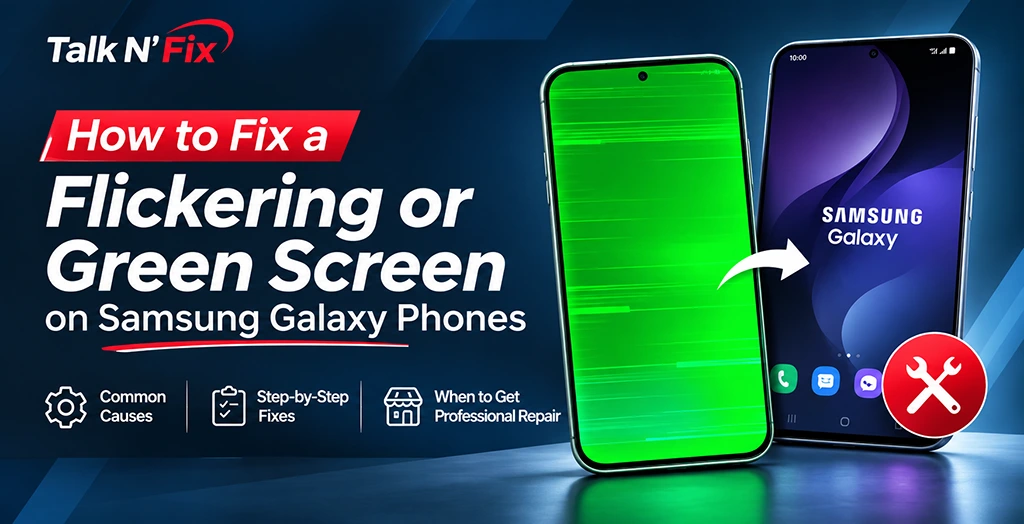
In this guide, we’ll explain the common reasons behind Samsung Galaxy screen flickering and green screen problems, walk you through practical troubleshooting steps, and help you understand when professional Samsung screen repair may be necessary.
Whether you own a Samsung Galaxy S series, Galaxy A series, Galaxy Z Flip, Galaxy Z Fold, or an older Galaxy Note device, these troubleshooting tips can help you identify the problem and decide what to do next.
Why Is My Samsung Galaxy Screen Flickering or Turning Green?
Before attempting a repair, it’s important to understand what might be causing the problem. A flickering display can have several possible causes, and identifying the symptoms can help you choose the right solution.
Here are some of the most common reasons.
1. Software Glitches or System Updates
Sometimes, a temporary software bug can interfere with how your phone displays images and colors. This may happen after a software update, when an application crashes, or when certain system processes stop working correctly.
You might notice:
- Random screen flickering.
- Sudden green or unusual color tints.
- Display brightness changing unexpectedly.
- Screen flashing when opening certain applications.
If the issue started shortly after an update or app installation, a software-related problem is worth investigating.
2. Physical Screen Damage
Samsung Galaxy phones use different display technologies, including AMOLED and Dynamic AMOLED screens on many models. Although these displays provide excellent color and contrast, the display assembly can still be damaged by drops, impacts, pressure, or bending.
Even if the outer glass looks perfectly fine, the display underneath may be damaged.
Signs of possible physical display damage include:
- Persistent green or white vertical lines.
- Large green patches across the screen.
- Flickering that continues after restarting.
- Black spots or areas that no longer display properly.
- A screen that works intermittently.
These symptoms may indicate damage to the display panel or its internal connections.
3. Overheating
Your Samsung phone may experience unusual behavior when it gets too hot. Heavy gaming, demanding applications, prolonged video recording, direct sunlight, or charging in a hot environment can increase device temperature.
If your screen starts flickering while the phone is unusually hot, overheating could be contributing to the problem.
Allow the phone to cool naturally before using it again. Avoid placing it in a refrigerator or using ice or other rapid-cooling methods.
4. Incorrect Display Settings
Certain display settings can change how your Samsung screen looks. Features such as Adaptive Brightness, Eye Comfort Shield, screen modes, and extra dimming can affect brightness or color appearance.
These settings do not normally cause hardware-related green lines, but checking them can help rule out simple display configuration problems.
5. Loose or Damaged Internal Display Connections
Your phone’s display connects to its internal components through delicate connectors and flexible cables.
A drop, previous repair, liquid exposure, or internal damage can affect these connections.
When this happens, the screen may flicker, display unusual colors, show intermittent lines, or stop working properly.
This type of problem generally requires professional inspection rather than a software adjustment.
How to Fix a Flickering or Green Screen on Samsung Galaxy Phones
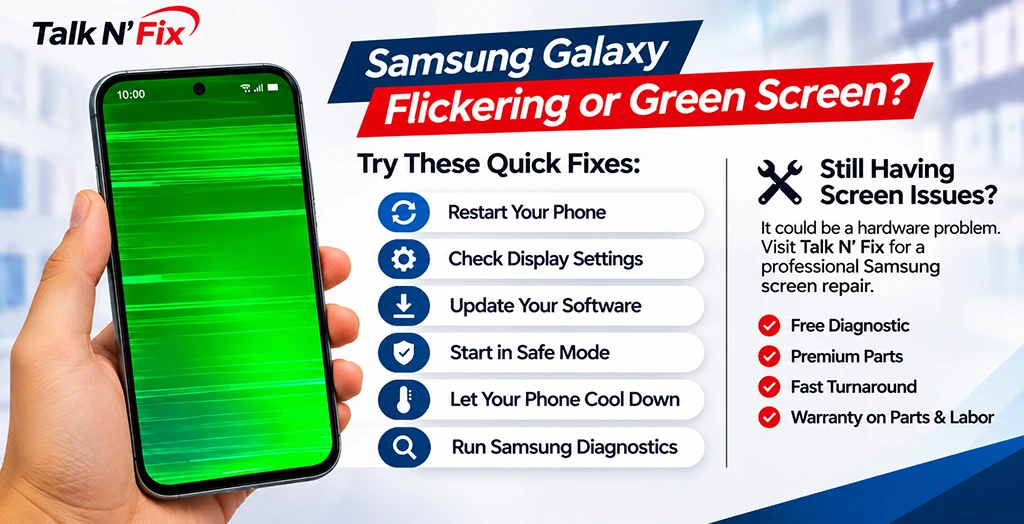
If your Samsung display is still responsive, try the following troubleshooting methods. Start with the simplest steps before attempting anything more advanced.
1. Force Restart Your Samsung Galaxy Phone
A force restart is one of the easiest ways to resolve temporary software glitches.
It refreshes the phone’s operating system without deleting your personal files, photos, applications, or settings.
How to force restart:
- Press and hold the Volume Down button and Side/Power button simultaneously.
- Continue holding both buttons for approximately 7–10 seconds, or until the Samsung logo appears.
- Release the buttons and allow the phone to restart.
- Check whether the flickering or green screen has disappeared.
The exact timing can vary between models.
If the display returns to normal after restarting, the issue may have been caused by a temporary software malfunction. However, if it happens repeatedly, further troubleshooting may be necessary.
2. Check and Adjust Your Display Settings
If your screen has a green tint or flickers mainly at low brightness, check your display settings.
Try the following:
- Open Settings.
- Select Display.
- Check the Adaptive Brightness setting.
- Temporarily turn off Adaptive Brightness.
- Adjust the brightness manually.
- Check whether Eye Comfort Shield or Extra Dim is enabled.
- Temporarily disable these features and observe the screen.
You can also check your screen mode settings, if available on your device.
If the green appearance disappears after changing a setting, you may have identified a software or display configuration issue.
Keep in mind that persistent green lines, flashing, or large discolored areas are unlikely to be resolved through brightness adjustments alone.
3. Update Your Samsung Galaxy Software
Running outdated software can sometimes contribute to display-related glitches.
Samsung regularly releases software updates that include bug fixes, security improvements, and performance enhancements.
To check for an update:
- Open Settings.
- Scroll down and select Software update.
- Tap Download and install.
- If an update is available, follow the instructions to install it.
- Restart your phone once the installation is complete.
Make sure your battery has sufficient charge and use a stable internet connection during the update.
If the flickering started immediately after a software update, installing a newer available update may help if Samsung has addressed the underlying issue.
4. Start Your Phone in Safe Mode
Sometimes, a third-party application can interfere with your phone’s normal operation.
Safe Mode temporarily disables downloaded applications, allowing you to check whether an installed app is responsible for the display problem.
How to enter Safe Mode:
- Open the Power menu.
- Touch and hold the Power off option on the screen.
- When the Safe Mode option appears, tap it.
- Wait for your phone to restart.
- Check whether the screen continues flickering.
If your phone’s display works normally in Safe Mode, a recently installed or updated application may be causing the problem.
Consider uninstalling recently downloaded applications one at a time and checking the display after each removal.
To exit Safe Mode, simply restart your phone normally.
If the flickering continues in Safe Mode, the issue may be related to the system software or hardware rather than a third-party application.
5. Check Your Phone for Overheating
If your Samsung Galaxy screen starts flickering during gaming, video recording, or charging, check whether the phone is overheating.
Try these steps:
- Stop demanding applications and games.
- Disconnect the charger if the phone is unusually hot.
- Remove the phone case if it is trapping heat.
- Move the device away from direct sunlight.
- Allow it to cool naturally before using it again.
Avoid using your phone while it remains unusually hot.
If the display problem continues even after the phone has cooled down, overheating may not be the only cause.
6. Run Samsung Members Diagnostics
Samsung Members provides diagnostic tools that can help check certain phone components and functions.
If the application is available on your device, you can use it to run relevant diagnostics.
How to check your device:
- Open the Samsung Members application.
- Select the Support section.
- Look for Phone diagnostics or Diagnostics.
- Choose the available screen or display-related test, if offered.
- Follow the on-screen instructions.
The available tests may vary depending on your phone model, software version, and region.
Diagnostic results can provide useful information, but passing a test does not necessarily rule out intermittent display hardware problems.
7. Back Up Your Data
If the green screen or flickering continues, back up your important information as soon as possible while the display is still usable.
You can use Samsung Cloud where supported, Google account backup, Smart Switch, or another suitable backup method.
Make sure you save important items such as:
- Photos and videos.
- Contacts.
- Messages.
- Important documents.
- Application data where backup is supported.
A failing display may become completely unusable without warning, making data access more difficult.
Backing up your data is particularly important before considering advanced troubleshooting or professional repair.
What If Your Samsung Screen Is Completely Green?
A completely green Samsung screen can be more concerning than occasional flickering.
If the entire display turns green, first try a force restart. If the screen remains green, consider whether the phone has recently been dropped, exposed to moisture, or subjected to unusual pressure.
Here are some useful observations:
If the phone still vibrates or receives calls: The phone may still be functioning internally, even though the display is not working correctly.
If the screen has green lines or patches: Physical damage to the display panel or its connections may be responsible.
If the screen turns green after a drop: Hardware damage becomes a stronger possibility, even if the glass is not cracked.
If the green screen appears after an update: A software-related problem is possible, although this does not rule out an existing hardware issue.
Avoid repeatedly pressing the display, bending the phone, or attempting to open the device yourself. These actions can make an existing problem worse.
If the display remains completely green, professional inspection is the safest next step.
When Does a Samsung Galaxy Phone Need Screen Replacement?
Not every display problem requires a complete screen replacement. The right repair depends on the actual cause.
However, professional Samsung screen repair may be necessary when:
- Green or purple vertical lines remain visible.
- The display flickers continuously.
- Large green patches appear across the screen.
- Touchscreen functionality stops working.
- The screen becomes black or unusable.
- Display problems started after a physical impact.
- The screen continues malfunctioning after software troubleshooting.
A qualified technician can inspect the display assembly, internal connections, and other relevant components to identify the source of the issue.
If the display panel is damaged, replacing the screen assembly may be the appropriate solution.
For phones with a damaged internal connection or another hardware fault, the repair approach may be different.
The important thing is to identify the actual problem before replacing expensive components unnecessarily.
How Much Does Samsung Galaxy Screen Repair Cost?
The cost of Samsung Galaxy screen repair depends on several factors.
These include:
- Your Samsung Galaxy model.
- The type of display technology used.
- Whether the display panel or other components are damaged.
- Whether the repair requires a complete screen assembly.
- The availability and type of replacement parts.
For example, repairing a Galaxy A series phone may have a different price from repairing a premium Galaxy S series or a foldable Galaxy Z device.
The best way to determine the cost is to have your phone inspected by a professional technician.
At Talk N’ Fix, customers can request a repair quote and have their device checked through a free diagnostic, with no fix, no charge.
Why Choose Talk N’ Fix for Samsung Galaxy Screen Repair?
When your Samsung Galaxy screen starts flickering or turns green, getting the right diagnosis is important.
At Talk N’ Fix, we help customers get their devices working again with fast, reliable, and professional repair services.
Our experienced technicians handle a range of Samsung Galaxy repair needs, including:
- Samsung Screen Repair: Help with cracked displays, screen lines, flickering, and touchscreen problems.
- Battery Replacement: Solutions for batteries that drain quickly or no longer hold a charge.
- Charging Port Repair: Help with charging issues and damaged charging connections.
- Camera and Speaker Repair: Repairs for common camera and audio-related problems.
- Software Repair: Assistance with certain software-related device issues.
Here’s what you can expect when choosing Talk N’ Fix:
Expert Technicians: Our certified and experienced technicians handle a range of device repairs.
Premium Parts: We use high-quality parts for our repair services.
Fast Turnaround: Most repairs are completed the same day, with many common repairs taking approximately 30–45 minutes. Actual repair times depend on the device and the issue.
Free Diagnostic: We offer free diagnostics with a no-fix, no-charge approach.
Warranty: Warranty coverage is available on parts and labor. Specific terms may vary depending on the repair and location.
Whether your Samsung Galaxy needs a screen replacement or a different type of repair, our team is here to help.
Frequently Asked Questions (FAQs)
1. Why is my Samsung Galaxy screen flickering green?
A Samsung Galaxy screen may flicker green because of a software glitch, display setting, overheating, physical screen damage, or an internal hardware connection problem. If restarting the phone and checking the display settings do not resolve the issue, professional inspection may be necessary.
2. Can a software update fix a green screen on Samsung phones?
Yes, a software update may resolve a green screen issue if it is caused by a software bug. However, updates cannot repair physical damage to the display panel or internal connections.
3. Why does my Samsung screen flicker at low brightness?
Flickering or a green tint at low brightness can sometimes be associated with the way an OLED or AMOLED display operates. Display settings and software can also affect how the screen looks. If the issue is persistent or accompanied by lines, patches, or other unusual symptoms, have the display inspected.
4. Can a green screen be fixed without replacing the display?
Yes, depending on the cause. If the problem is related to software, an application, or a display setting, troubleshooting may resolve it without replacing any hardware. However, a physically damaged display panel will generally require professional hardware repair.
5. Is a green screen a sign that my Samsung display is damaged?
It can be. Persistent green lines, large green patches, and flickering following a drop or impact can indicate display damage. However, a green appearance alone does not confirm that the screen needs replacement. Proper diagnosis is important.
6. Will a factory reset fix Samsung screen flickering?
A factory reset may help if the issue is caused by a software problem, but it will not fix physical display damage. Since a factory reset erases personal data, back up your information first and consider professional diagnosis before attempting it.
7. Can I continue using my Samsung phone with a flickering screen?
It depends on the severity of the problem. If the screen is only occasionally flickering and the device is otherwise functioning normally, you may be able to use it temporarily. However, persistent flickering, spreading green patches, or touchscreen problems should not be ignored. Back up your data and arrange an inspection.
8. Does Talk N’ Fix repair all Samsung Galaxy models?
Talk N’ Fix provides Samsung Galaxy repair services for a range of devices, including Galaxy S, Galaxy A, Galaxy Z Flip, Galaxy Z Fold, and Galaxy Note series phones. Repair availability, parts, and pricing depend on the specific model and location.
Get Your Samsung Galaxy Screen Fixed at Talk N’ Fix
A flickering or green screen can make even the simplest phone tasks frustrating. While software troubleshooting may resolve some problems, persistent display issues can indicate hardware damage that requires professional attention.
Rather than guessing what is wrong or attempting risky DIY repairs, have your Samsung Galaxy inspected by experienced technicians.
At Talk N’ Fix, we focus on fast, reliable, and professional device repair using premium parts and quality service.
Don’t let a faulty screen keep you disconnected.
Visit your nearest Talk N’ Fix location, request a free diagnostic, and let our team help you find the right repair solution.
Talk N’ Fix – Fast. Reliable. Professional. We Keep You Connected.